By PortableMonitor Editorial Team ·
Best Portable Monitor for MacBook in India (2026)
Five USB-C portable monitors that suit MacBook Air and Pro owners in India, with ₹ prices, one-cable tips and the macOS quirks to know before you buy.
Disclosure: as an Amazon Associate we earn from qualifying purchases made through links on this page. This guide is based on manufacturer specifications, Amazon.in listings and owner reviews. Prices change, so check the live price before you buy. How we research.
The best portable monitor for a MacBook in India is a USB-C model that takes video and power over one cable and does not weigh much more than the laptop's charger. We compared specs, listing details and owner reviews for the portable monitors in our database and picked five that suit MacBook Air and MacBook Pro owners.
Quick answer: The Lenovo ThinkVision M14T 14″ FHD Touch is our top pick for Air users who want a light, aluminium-bodied screen with charging pass-through, at around ₹31,990 at the time of writing. If you want to spend about half that, the KYY 15.6" FHD USB-C HDMI is around ₹16,227. Amazon.in prices change, so check each product page for the live price.
What matters when pairing a monitor with a MacBook
USB-C video support
Every MacBook with USB-C or Thunderbolt ports can send video through them. The monitor must accept DisplayPort Alt Mode over USB-C. All five picks below list USB-C with power delivery, but see our USB-C vs HDMI portable monitor guide if you are unsure which connection to use.
How many external screens your chip allows
Apple limits external displays by chip. Base M1 and M2 MacBook Air models are documented as supporting a single external display, so a two-portable-monitor setup will not work there without extra hardware. Newer chips and Pro or Max models allow more. Look up your exact model on Apple's tech specs page.
Pass-through charging
A MacBook has only two USB-C ports on many Air models. If the monitor draws power from one of them, you lose a port and battery life. A monitor with a second USB-C port that passes charging through lets you plug the MacBook charger into the monitor and run one cable to the laptop. Read more in our guide on whether portable monitors need external power.
Resolution and macOS scaling
macOS renders sharper on high-density screens. A 15.6 inch Full HD panel is about 141 PPI, which is usable but visibly softer than a MacBook's built-in display. A 15.6 inch 4K panel is about 282 PPI, which is much closer to what a Retina display looks like. Most buyers will accept Full HD at the price difference.
Touch is wasted on a Mac
macOS does not take touch input from external screens. If you only use a Mac, skip the touch models unless you also use the monitor with a Windows laptop or a phone.
The five best portable monitors for MacBook
| Monitor | Size | Resolution | Ports | Weight | Price (approx.) | Rating |
|---|---|---|---|---|---|---|
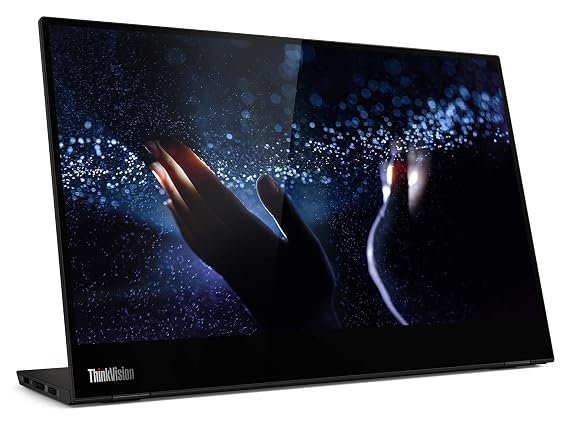
| Lenovo ThinkVision M14T | 14" | 1920x1080 | Dual USB-C | 0.6 kg | ₹31,990 | 4.1 (3,150) |
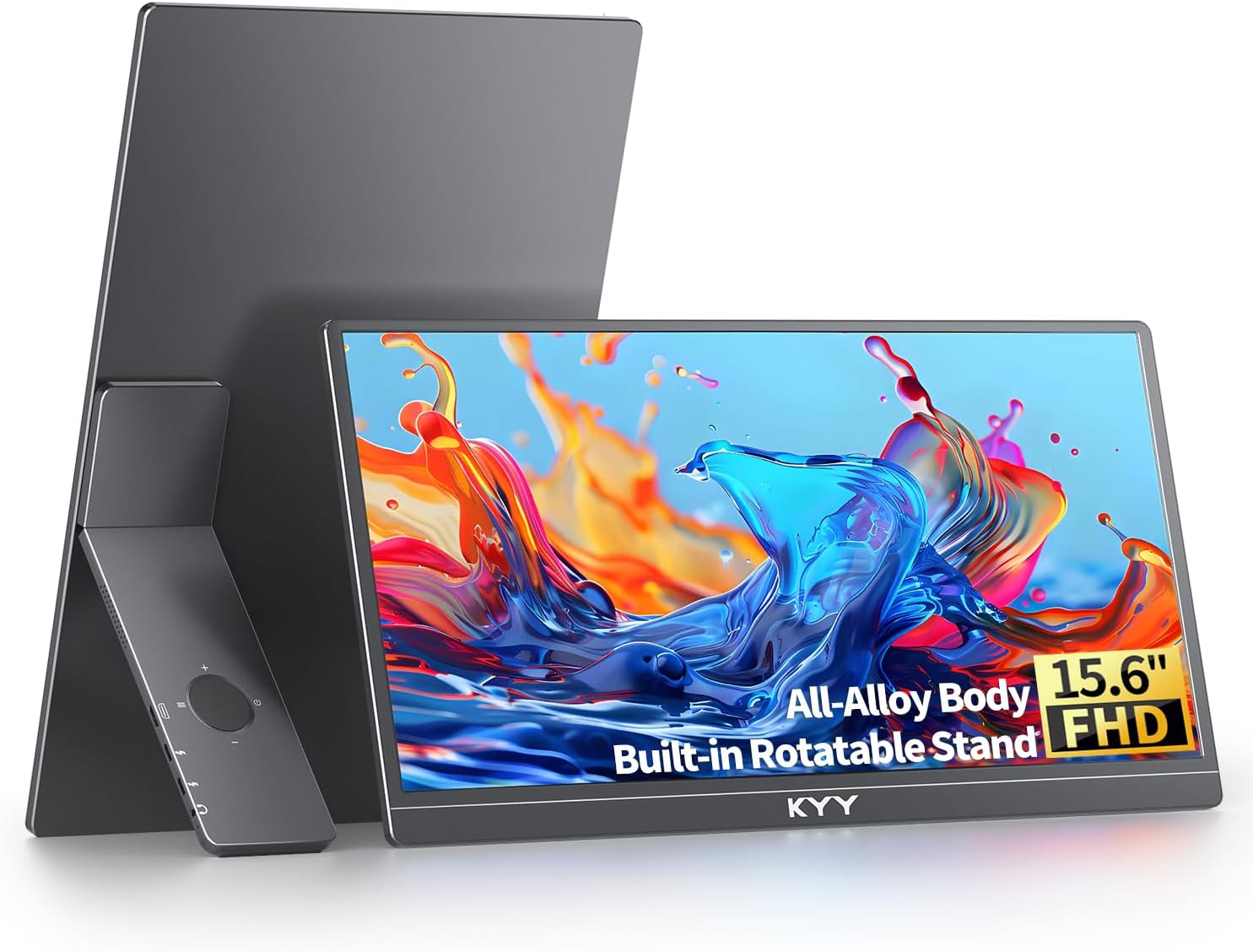
| KYY 15.6" FHD USB-C HDMI | 15.6" | 1920x1080 | USB-C, mini HDMI | 0.75 kg | ₹16,227 | 4.8 (890) |
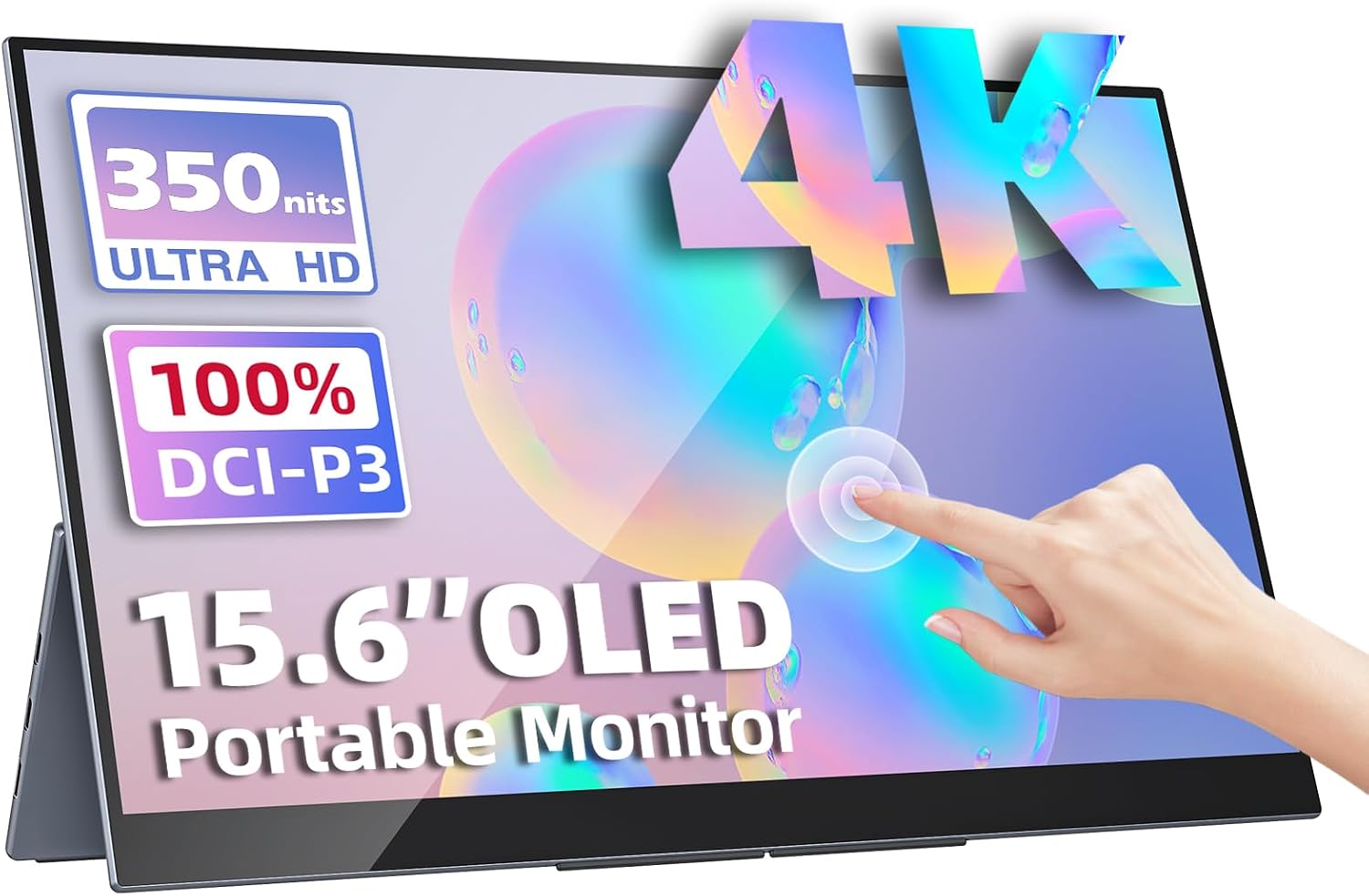
| Upperizon OLED 15.6" 4K Touch | 15.6" | 3840x2160 | USB-C, mini HDMI | 0.9 kg | ₹70,677 | 4.8 (180) |
| ARZOPA 15.6" FHD USB-C | 15.6" | 1920x1080 | USB-C, mini HDMI | 0.74 kg | ₹12,990 | 4.3 (850) |
| Upperizon 15.6" FHD HDR IPS | 15.6" | 1920x1080 | USB-C, mini HDMI | 0.8 kg | ₹22,184 | 4.8 (520) |
1. Lenovo ThinkVision M14T: best for MacBook Air and travel
The Lenovo ThinkVision M14T 14″ FHD Touch weighs 0.6 kg and has an aluminium build. Its two USB-C ports support power delivery pass-through, which is the cleanest setup for a MacBook Air: charger into the monitor, one cable to the laptop. It has the largest review base in our database (3,150 reviews), with a 4.1 average.
The weak points are listed in the data: no HDMI port, 60 Hz only, and no built-in speakers. It also has a touch layer you cannot use on a Mac, and at around ₹31,990 you pay for it. If you use a Windows laptop or phone as well, that touch layer has a use.
2. KYY 15.6" FHD USB-C HDMI: best value for MacBook owners
The KYY 15.6" FHD USB-C HDMI is slim, weighs 0.75 kg and has both USB-C and mini HDMI, so it works with older laptops, consoles and phones too. A 4.8 rating from 890 reviews is strong for a monitor at around ₹16,227.
It has no VESA mount and is 60 Hz only. The listing also does not state a second USB-C port for pass-through, so check the listing before assuming you can charge through it. For a closer look at its main rival, see the ARZOPA 15.6" vs KYY 15.6" comparison.
3. Upperizon OLED 15.6" 4K Touch: best picture quality
The Upperizon OLED 15.6" 4K Touch is the only 4K OLED panel in our list, with 100% DCI-P3 colour, 400 nits and HDR. It includes a case and stand. At 3840x2160 on 15.6 inches, macOS text and photos should look much closer to a MacBook's own screen than Full HD does. For colour-sensitive work it is the strongest option here.
The cost is the problem: around ₹70,677, the most expensive monitor in our database, and it is 60 Hz only. OLED panels can in theory suffer burn-in with static content, so avoid leaving a fixed layout on screen for hours. The touch layer is not used on a Mac. See all OLED portable monitors for context.
4. ARZOPA 15.6" FHD USB-C: best budget one-cable option
The ARZOPA 15.6" FHD USB-C is listed around ₹12,990 and is described as a one-cable USB-C solution for laptops including MacBooks. Good build quality is among its listed strengths, and it has 850 reviews with a 4.3 average, lower than the KYY.
It weighs 0.74 kg, is 60 Hz only and has no VESA mount. It is the pick if the budget is tight and you want a mainstream brand name with a USB-C connector.
5. Upperizon 15.6" FHD HDR IPS: best mid-range with a VESA mount
The Upperizon 15.6" FHD HDR IPS costs around ₹22,184, has HDR support, built-in speakers and a VESA mount, and its listing names MacBooks among compatible devices. A 4.8 rating from 520 reviews backs it up.
It is 60 Hz and has no touch. Compared with the ARZOPA and KYY, you pay extra for HDR and VESA. If you do not need those, pick one of the cheaper two.
MacBook setup tips
Connect the monitor, then open System Settings and go to Displays to set arrangement, mirroring and scaling. Portable monitors usually have their own on-screen menu for brightness, because macOS may not be able to control an external screen's backlight. If the picture does not appear, try another cable. USB-C cables that only charge are a common cause, and our guide to connecting a portable monitor to a laptop walks through the checks.
Developers on Mac will also like our shortlist of the best portable monitors for developers. For all models with a USB-C port, browse USB-C portable monitors.
Common MacBook problems and fixes
The monitor stays black. Swap the cable first. Many USB-C cables carry only power or slow data. Then try the other USB-C port on the MacBook, and check the monitor's input source if it has both USB-C and HDMI.
The picture looks soft. On a Full HD panel this is expected. Open System Settings, go to Displays, and choose a default or scaled resolution that matches the panel's native one. Avoid odd scaled modes, which can blur text further.
The monitor flickers or disconnects when the MacBook is on battery. This can point to a power shortfall. Feed the monitor from its own adapter or through a pass-through port, as covered above.
Brightness keys do nothing on the portable screen. Use the monitor's own buttons, since the keyboard shortcuts control the built-in display.
Clamshell mode. If you want to close the MacBook lid and use only the portable monitor, you will normally need power connected and an external keyboard and mouse. Check Apple's guidance for your model.
Which one should you buy?
- MacBook Air, light bag, one cable: Lenovo ThinkVision M14T.
- Best price and rating balance: KYY 15.6" FHD USB-C HDMI.
- Photo or video work, budget is flexible: Upperizon OLED 15.6" 4K Touch.
- Lowest cost: ARZOPA 15.6" FHD USB-C.
- VESA mount and HDR on a mid budget: Upperizon 15.6" FHD HDR IPS.
This is a spec-based comparison and not a hands-on review, so read recent Amazon.in reviews on each product page for cable and compatibility reports with your exact MacBook model.