By PortableMonitor Editorial Team ·
Do Portable Monitors Need External Power? USB-C Power Delivery Explained
Most portable monitors run from one USB-C cable, but not always. Here is when you need a charger, how power delivery works, and what to check before you buy.
Disclosure: as an Amazon Associate we earn from qualifying purchases made through links on this page. This guide is based on manufacturer specifications, Amazon.in listings and owner reviews. Prices change, so check the live price before you buy. How we research.
Do portable monitors need external power? Often not. Most 15.6-inch portable monitors can run from a single USB-C cable that carries video and power from your laptop. You do need a charger when you connect over HDMI, when the source cannot supply enough power, or when the screen is big and bright.
Every product in our database is listed without a built-in battery, so the monitor always depends on a cable for power. This guide explains where that power comes from and how to avoid a black or flickering screen.
The short answer: one cable or two?
| Connection | Power source | Extra charger needed? |
|---|---|---|
| USB-C to a laptop with video output | Laptop supplies power over the same cable | Usually no |
| USB-C to a phone or tablet | Phone supplies power from its own battery | Often yes, to protect the phone battery |
| HDMI (mini HDMI to full HDMI) | Video only, no power | Yes, via USB power cable |
| USB-C to a console or handheld | Depends on the device | Check the device, often yes |
The common pattern for a 15.6-inch screen: plug in one USB-C cable and the laptop sends both picture and power. If that works, you never need to think about power again. If it does not, the options below fix it.
How USB-C power delivery works with a monitor
USB-C carries power, data and video. Power delivery (PD) is the standard that lets two devices agree on voltage and current. For a portable monitor there are two separate things going on:
- Video: needs DisplayPort Alt Mode on the laptop's USB-C port. See our guide on how to connect a portable monitor to a laptop.
- Power to the monitor: the laptop port must be able to offer enough power for the panel and backlight.
A smaller screen at moderate brightness draws a modest amount of power, while a large panel at full brightness with speakers draws more. Exact figures depend on the model, so look for the "rated input" in the manual or listing instead of guessing. A laptop's own spec sheet will say how much each USB-C port can supply.
All but one of our 16 listed products carry a USB-C power delivery flag in the database. The exception is the MSI PRO MP161 E2 15.6" FHD, which is flagged without USB-C. Its database entry also notes a 23.8-inch size, so it is not a travel monitor, and its listing text is inconsistent about ports. Read the listing carefully before you buy it.
When one cable is enough
One cable is usually enough when all of these are true:
- Your laptop's USB-C port supports video output and can supply power to a connected device.
- The monitor is a typical 14 to 17-inch model.
- You are not running the screen at full brightness for hours on a laptop that is already low on battery.
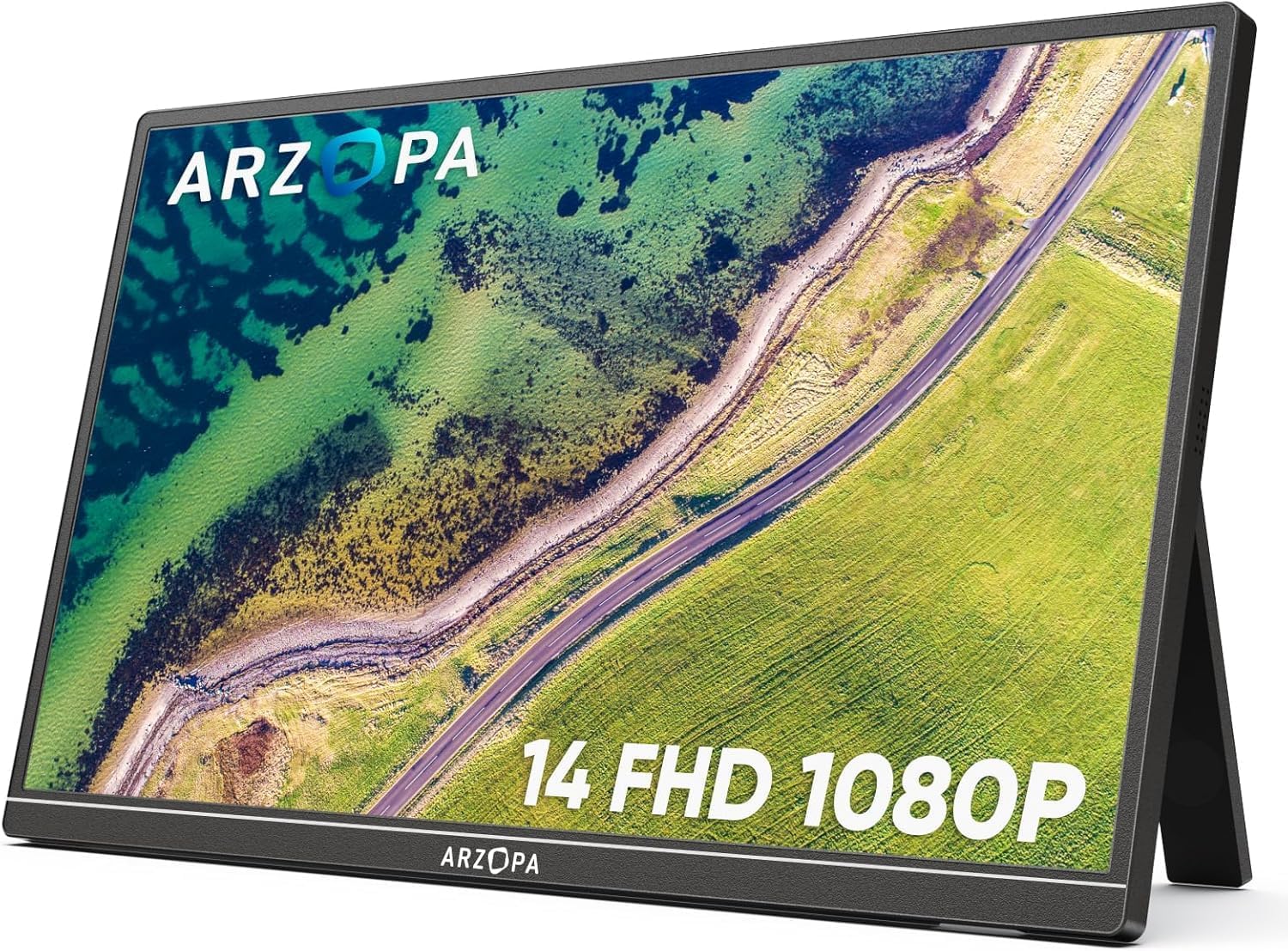
The ARZOPA 15.6" FHD USB-C, at around ₹12,990 at the time of writing, is listed with a one-cable USB-C setup. The MSI PRO MP161 15.6" FHD at around ₹9,999 lists USB-C PD and mini HDMI. Amazon prices change, so use each product page for the live price.
When you need external power
1. You are using HDMI
HDMI carries picture and sound only. The monitor still needs power from somewhere, usually a USB cable plugged into a laptop USB-A port, a wall adapter or a power bank. Check which end of the monitor takes power and whether it also needs a video-only connection. Most listings show the ports on the side.
2. The laptop port cannot supply enough power
Some thin laptops limit USB-C output, and some ports only accept charging. Symptoms are a dark screen, flicker or restarts. Plug a phone charger into the monitor's second USB-C port, or use the supplied adapter if one is included. If you hit this, our no signal and not detected fixes walk through the diagnosis.
3. The screen is large
Bigger monitors need more power. The UPERFECT 24" 100Hz VESA is 24 inches and weighs 1.8 kg. It also runs at 100 Hz. A laptop port alone may not power a screen like this, so plan to use a wall adapter. Check the listing for what power accessories ship in the box. Browse the large-screen portable monitors category for other bigger sizes.
4. You connect a phone, console or Raspberry Pi
A phone driving a monitor drains its own battery quickly. Use a monitor with pass-through charging or a USB-C hub that accepts a charger. Consoles usually output HDMI, so you power the monitor separately. For a Raspberry Pi, power the monitor from its own adapter, not from the board.
USB-C pass-through: one charger for two devices
Pass-through charging means the monitor has two USB-C ports. One goes to the laptop for video, the other takes a charger. The monitor uses what it needs and sends the rest to the laptop.
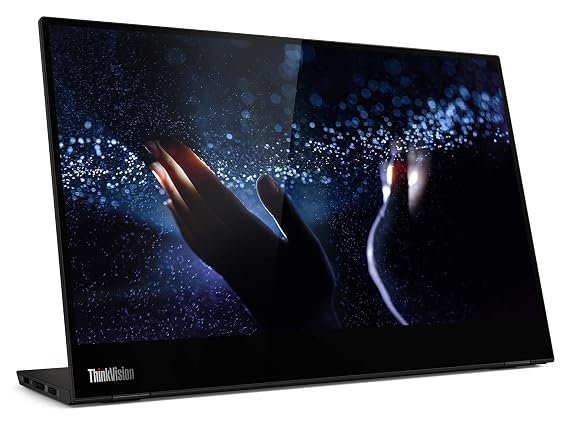
The Lenovo ThinkVision M14T 14″ FHD Touch lists dual USB-C ports with PD pass-through. It is around ₹31,990 at the time of writing and weighs 0.6 kg. It has no HDMI port, so you need a USB-C video laptop. This setup is useful if you carry one charger and one cable. The pass-through wattage is not stated in our data, so check the listing and make sure the charger and the laptop can work together.
Which charger or power bank to use
- Match or exceed the monitor's rated input. If the manual says a figure, use a charger at least that large.
- Use a good cable. A thin cable can limit power and video quality.
- For power banks, choose one with a USB-C output and enough rated wattage, and use the monitor's power-only port if it has one.
- For a laptop plus monitor, a charger that matches the laptop's own charging needs is a safer pick than a small phone charger.
Does a portable monitor hurt battery life?
Yes, if the laptop is powering it. The effect depends on brightness, the panel size and whether the speakers are in use. Lowering brightness helps. For an all-day setup, plug the laptop into mains or use pass-through.
The lighter, smaller screens are easier on batteries. The ARZOPA 14" FHD Ultra Slim weighs 0.5 kg with 250 nits peak brightness, around ₹10,999 at the time of writing. The trade-off is lower brightness, which the listing data flags as a drawback.
Power for consoles and handhelds
Consoles and handhelds behave differently from laptops, so check each one.
- PS5: outputs video over HDMI only. Run the HDMI cable to the monitor and power the monitor from a wall adapter or power bank. Our portable monitors for PS5, Switch and Steam Deck guide covers the setup in more detail.
- Nintendo Switch: the standard Switch sends video to a screen only through its dock, so you connect the dock's HDMI to the monitor and power the monitor separately.
- Steam Deck: can output video over USB-C. Powering the monitor from the Deck will drain its battery quickly, so a dock or a power source for the monitor is the better route.
Travel tips for power
Plan the power side of the bag before a trip. A short USB-C cable for video, one longer cable for the charger and a compact multi-port charger cover most cases. If you work from hotels or co-working spaces, you will probably have one wall socket within reach, so a two-port charger that feeds the laptop and the monitor stays tidy. Our remote work and travel guide picks monitors with this sort of trip in mind.
Quick picks by power situation
| Your situation | What to look for | Product to check |
|---|---|---|
| One charger for laptop and monitor | Dual USB-C with PD pass-through | Lenovo ThinkVision M14T |
| Cheapest one-cable setup | USB-C plus mini HDMI, low price | MSI PRO MP161 15.6" FHD |
| Lightest load on a laptop battery | Small and light panel | ARZOPA 14" FHD Ultra Slim |
| Large screen at a desk | Bigger panel, plan for a wall adapter | UPERFECT 24" 100Hz VESA |
None of these specs include the exact power draw, so the listings and manuals are the place to confirm it.
Common power mistakes
- Using a phone charger on the video port. Many monitors want the charger on the power-only port. Check the labels near each port.
- Plugging into a USB hub. Hubs often share power across several devices and can starve the monitor.
- Assuming any USB-C cable works. Power-only and video-capable cables look the same.
- Running at maximum brightness on battery. Dropping brightness reduces draw and helps on long trips.
What to check before you buy
- Does the laptop's USB-C port support video and power output?
- Does the monitor have a second USB-C port for power or pass-through?
- Which video input does the monitor use: USB-C, mini HDMI or both?
- What does the box include: adapter, cable, stand?
- What is the rated power input?
To see more options, browse the USB-C portable monitors category and read USB-C vs HDMI for portable monitors. If you plan to run a phone, see using a portable monitor with a phone.