By PortableMonitor Editorial Team ·
USB-C vs HDMI for Portable Monitors: Which Connection Should You Use?
USB-C gives you a one-cable setup on laptops with video output. HDMI works with almost any device but needs a separate power cable. Here is how to pick.
Disclosure: as an Amazon Associate we earn from qualifying purchases made through links on this page. This guide is based on manufacturer specifications, Amazon.in listings and owner reviews. Prices change, so check the live price before you buy. How we research.
The short answer to usb-c vs hdmi portable monitor: use USB-C if your laptop or phone supports video over USB-C, because one cable handles picture and power. Use HDMI for everything else, including the PS5, desktop PCs, and laptops whose USB-C port only does data. Nearly every portable monitor we list offers both, so the choice is about your source device, not the monitor.
This guide explains how each connection works, where each one fails, and which listed models are worth looking at if the connection matters to you.
How USB-C works on a portable monitor
A USB-C port is only a connector shape. What it can do depends on the device behind it. For a portable monitor to show a picture over USB-C, the source port must support video output, usually through DisplayPort Alternate Mode (DP Alt Mode). Thunderbolt 3, Thunderbolt 4 and USB4 ports support it. Many mainstream laptop USB-C ports do as well, but some budget laptops have USB-C ports that only charge and transfer data.
When it works, it is the neatest setup. One cable carries the video signal, and the monitor draws its power from the laptop through the same cable. Touch input on touchscreen models also travels over that link.
The downsides are practical ones:
- Battery drain on the laptop. The monitor is powered by your laptop, so the laptop battery drops faster. Check the listing for the monitor's power draw, and plug the laptop in when you can.
- Port support is not obvious. Two identical-looking USB-C ports on one laptop can behave differently. Some do video, some do not.
- Cable quality matters. A charging-only cable will give you a black screen.
How HDMI works on a portable monitor
HDMI carries video and audio only. It does not deliver power. So an HDMI connection always needs two cables: the HDMI cable for the picture, and a second USB-C or USB cable from a charger, power bank or USB port to power the monitor.
In return, HDMI is the most universal connection. It works with desktop PCs, older laptops, game consoles, set-top boxes and mini PCs. There is also no question of Alt Mode support: if the device has an HDMI output, it works.
Check the connector size. Most listings in our database show a mini HDMI input, so you may need a mini HDMI to HDMI cable, or a mini HDMI to micro HDMI cable for a Raspberry Pi 5. Check what cable is in the box before you buy a second one.
USB-C vs HDMI at a glance
| USB-C (DP Alt Mode) | HDMI | |
|---|---|---|
| Cables needed | 1 | 2 (video plus power) |
| Carries power to monitor | Yes, from source device | No |
| Carries touch data | Yes, on touch models | Needs a separate USB link, check the listing |
| Works with PS5, Xbox, desktop PC | No | Yes |
| Works with MacBook Air M2 | Yes (Thunderbolt/USB4 ports) | Only with an adapter |
| Works with Steam Deck | Yes | Needs an adapter |
| Works with phones | Some (iPhone 15, many Samsung phones) | Needs an adapter |
| Main risk | Port without video output | Extra cable and power source |
Which devices need which connection
Laptops and MacBooks
If your laptop has a Thunderbolt, USB4 or DisplayPort-capable USB-C port, use USB-C. A MacBook Air M2 works this way, and it is the case where a single cable is most useful. If you are shopping specifically for a Mac, see our guide to the best portable monitors for MacBook in India.
If the laptop has only HDMI and USB-A (common on older or very cheap models), use HDMI for video and a USB-A port for power.
Game consoles
The PS5 outputs video over HDMI only, so use the HDMI input. The Nintendo Switch needs its dock for video, and the dock outputs over HDMI. The Steam Deck can output video over USB-C. We cover console setups in detail in our portable monitors for PS5, Switch and Steam Deck guide.
Phones
An iPhone 15 can output video over its USB-C port, and many Samsung phones can too (some through Samsung DeX). Older iPhones with Lightning need a separate adapter. Support varies by phone, so check your model's spec sheet.
Raspberry Pi and mini PCs
A Raspberry Pi 5 outputs video through its micro HDMI ports. Its USB-C port is for power, not video. So the monitor's HDMI input is the way in. Power the monitor from a separate charger or one of the Pi's USB ports, if the power budget allows.
Power and cables: the part people get wrong
Most "my monitor does not work" problems come from power or cables, not the monitor.
With USB-C video, the laptop supplies power. If the laptop port offers only a small amount of power, the screen can flicker, dim or disconnect. Using the monitor's second USB-C port with a wall charger fixes this on models that support power delivery. The monitors in our data all list USB-C power delivery except the MSI PRO MP161 E2, whose listing conflicts, so check it.
With HDMI, there are two separate jobs and two cables. The HDMI cable carries only the image, and the power cable must be plugged in or the screen stays dark. A phone charger works for many monitors, but check the listing for the recommended wattage.
A simple checklist before you assume the monitor is faulty:
- Use the cable in the box first, not an old charging cable.
- Plug into a different USB-C port on the laptop, because ports often differ.
- Try HDMI as a test. If HDMI works and USB-C does not, the USB-C port lacks video output.
- Update the laptop's graphics drivers and firmware.
This also tells you which connection to rely on when travelling: HDMI plus a power bank works with almost anything, while USB-C is only convenient when your laptop supports it.
Models that support the connections you need
Almost every monitor in our database lists USB-C with power delivery and a mini HDMI input. Two things stand out.
One cable and charging: ARZOPA 15.6" FHD USB-C
The ARZOPA 15.6" FHD USB-C is listed with a USB-C "one-cable" setup and is priced around ₹12,990 at the time of writing. It has a 4.3 rating from 850 reviews. Its main drawback in our data is that it is 60Hz only, which is true of nearly all the monitors in this guide.
Both ports, console and phone friendly: KYY 15.6" FHD USB-C HDMI
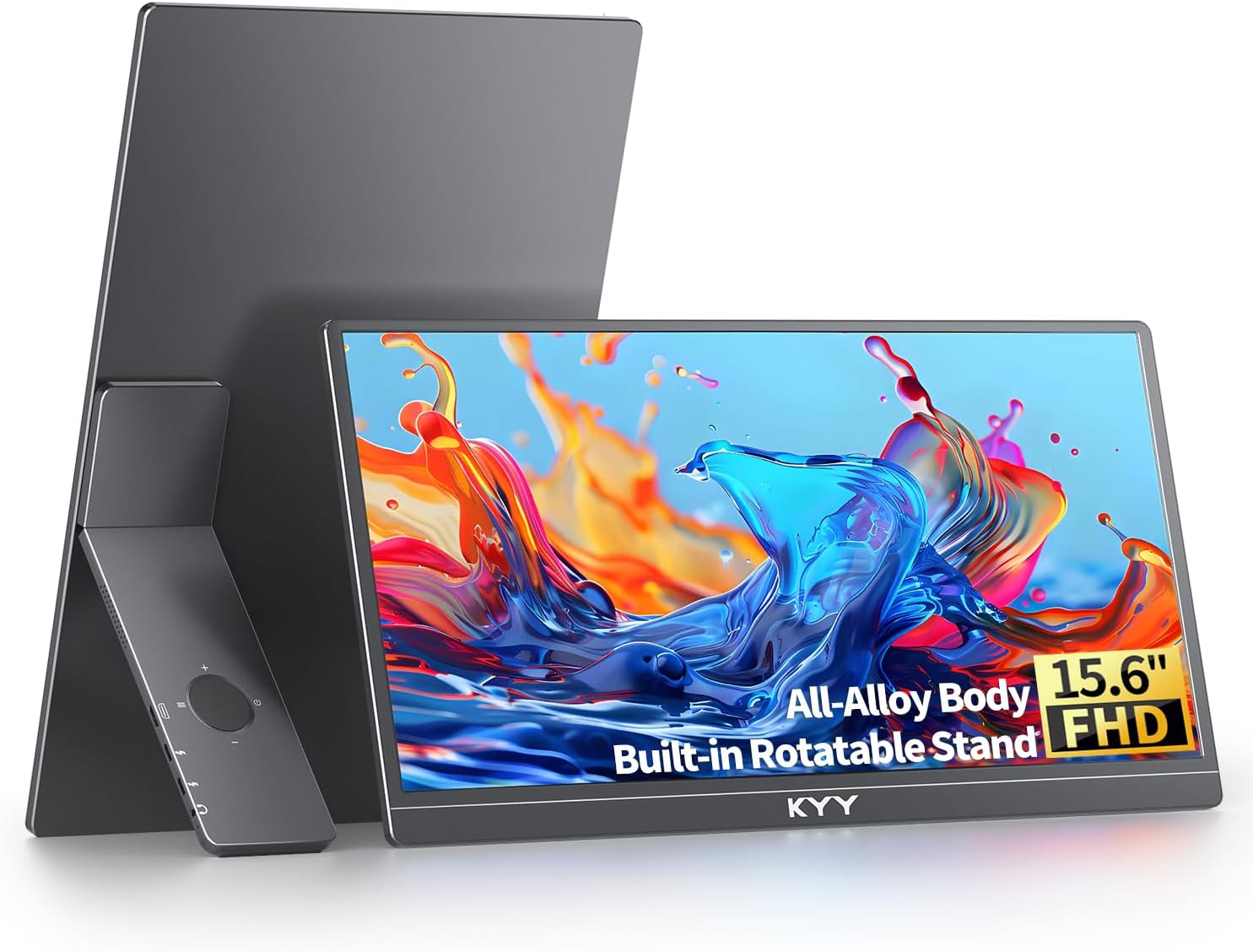
The KYY 15.6" FHD USB-C HDMI lists both inputs and says it works with laptops, MacBooks, phones and consoles. It costs around ₹16,227 at the time of writing, with a 4.8 rating from 890 reviews. It weighs 0.75kg and has no VESA mount. To compare it with a cheaper USB-C option, see our ARZOPA vs KYY 15.6" comparison, or open the full spec table.
USB-C only: Lenovo ThinkVision M14T 14" FHD Touch
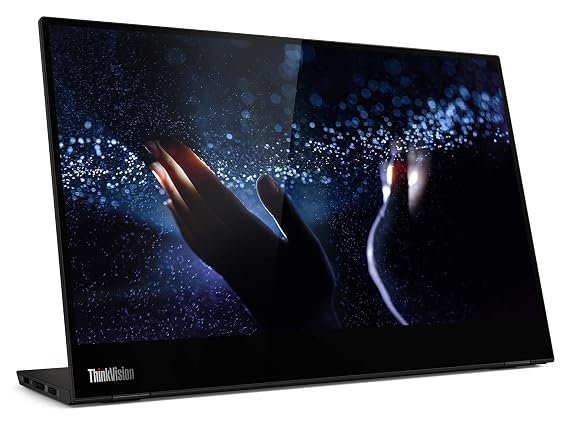
The Lenovo ThinkVision M14T 14″ FHD Touch is the exception. It has dual USB-C ports with power pass-through and no HDMI port. That suits a laptop-only workflow, but it cannot connect to a PS5 or a Raspberry Pi 5 directly. At around ₹31,990 at the time of writing, it is also one of the pricier 14-inch options, with a 4.1 rating from 3,150 reviews. It lists no speakers.
Cheapest dual-input option: MSI PRO MP161 15.6" FHD
The MSI PRO MP161 15.6" FHD lists USB-C and mini HDMI at around ₹9,999 at the time of writing, with a 4.6 rating from 340 reviews. Brightness is 250 nits, which is the main compromise.
All prices here are from Amazon.in and change often, so check the product page for the live price.
One caution on the MSI PRO MP161 E2
The listing data for the MSI PRO MP161 E2 is inconsistent about its ports. Our data lists "No USB-C" in its cons, while the description mentions mini HDMI and dual USB-C. If you plan to buy it, read the Amazon.in listing carefully for the exact inputs, and note that the data also flags that it is a larger 23.8-inch panel, not a true travel size.
How to choose
Pick USB-C if all of these are true: your laptop or phone supports video over USB-C, you want a single cable, and you do not mind the laptop powering the screen.
Pick HDMI if you use a console, a desktop PC, a Raspberry Pi, or a laptop with a data-only USB-C port. Carry a power bank or charger for the second cable.
Pick a model with both if you have more than one device. That covers most cases.
If a USB-C connection does not produce a picture, work through the steps in our no signal fixes guide. For how power is shared between the laptop and monitor, read do portable monitors need external power. To browse all monitors with USB-C power delivery, see the USB-C portable monitors category.