By PortableMonitor Editorial Team ·
How to Connect a Portable Monitor to a Laptop (USB-C and HDMI)
Connect a portable monitor to your laptop in minutes: pick USB-C or HDMI, power it correctly, then choose Extend or Mirror in Windows or macOS.
Disclosure: as an Amazon Associate we earn from qualifying purchases made through links on this page. This guide is based on manufacturer specifications, Amazon.in listings and owner reviews. Prices change, so check the live price before you buy. How we research.
To connect a portable monitor to a laptop, you have two routes: one USB-C cable that carries video and power, or an HDMI cable for video plus a separate USB-C cable for power. Both take about two minutes. Then you pick Extend or Mirror in your display settings. This guide covers each step for Windows and macOS.
Step 1: Pick the right connection
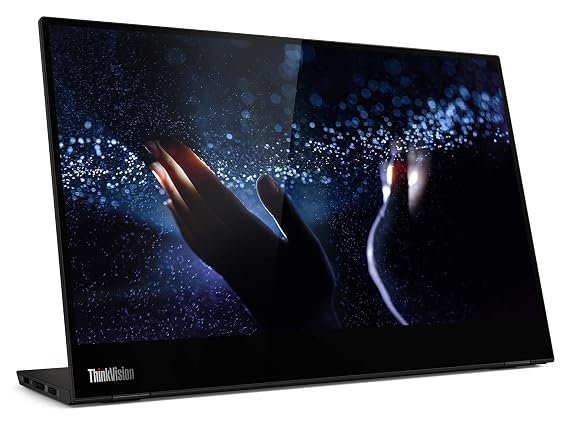
Look at the ports on your laptop and on the monitor. Most monitors in our range list USB-C with power delivery and mini HDMI, so you will usually have a choice. The Lenovo ThinkVision M14T 14" FHD Touch is the exception: it has two USB-C ports and no HDMI.
| Situation | Best route |
|---|---|
| Laptop has a USB-C port with video output | One USB-C cable |
| Laptop has HDMI but no video over USB-C | HDMI cable plus USB-C power |
| Laptop has only older USB-A ports | Not directly supported, see the note below |
How do you know if your USB-C port supports video? Look for a small DisplayPort symbol or a Thunderbolt lightning icon beside the port, or check the laptop's spec page for "DisplayPort Alt Mode" or "video output over USB-C". Some USB-C ports are for charging and data only. For a deeper comparison, read USB-C vs HDMI for portable monitors.
Step 2: Connect with a single USB-C cable
This is the simplest setup, and it is what a model like the ARZOPA 15.6" FHD USB-C is built around.
- Place the monitor on its stand or cover.
- Plug one end of a video-capable USB-C cable into the monitor's USB-C port. Many monitors have two, and the listing or the printed labels show which is for video.
- Plug the other end into the laptop's USB-C port that supports video.
- Wait a few seconds. The monitor should turn on and show your desktop.
A few cautions:
- Use the cable from the box first. Some USB-C cables carry only charging, which gives you a dark screen.
- The monitor draws power from the laptop. A weak port or a laptop on low battery can cause flicker. If that happens, plug a charger into the monitor's second USB-C port. Our guide on whether portable monitors need external power explains why.
Step 3: Connect with HDMI
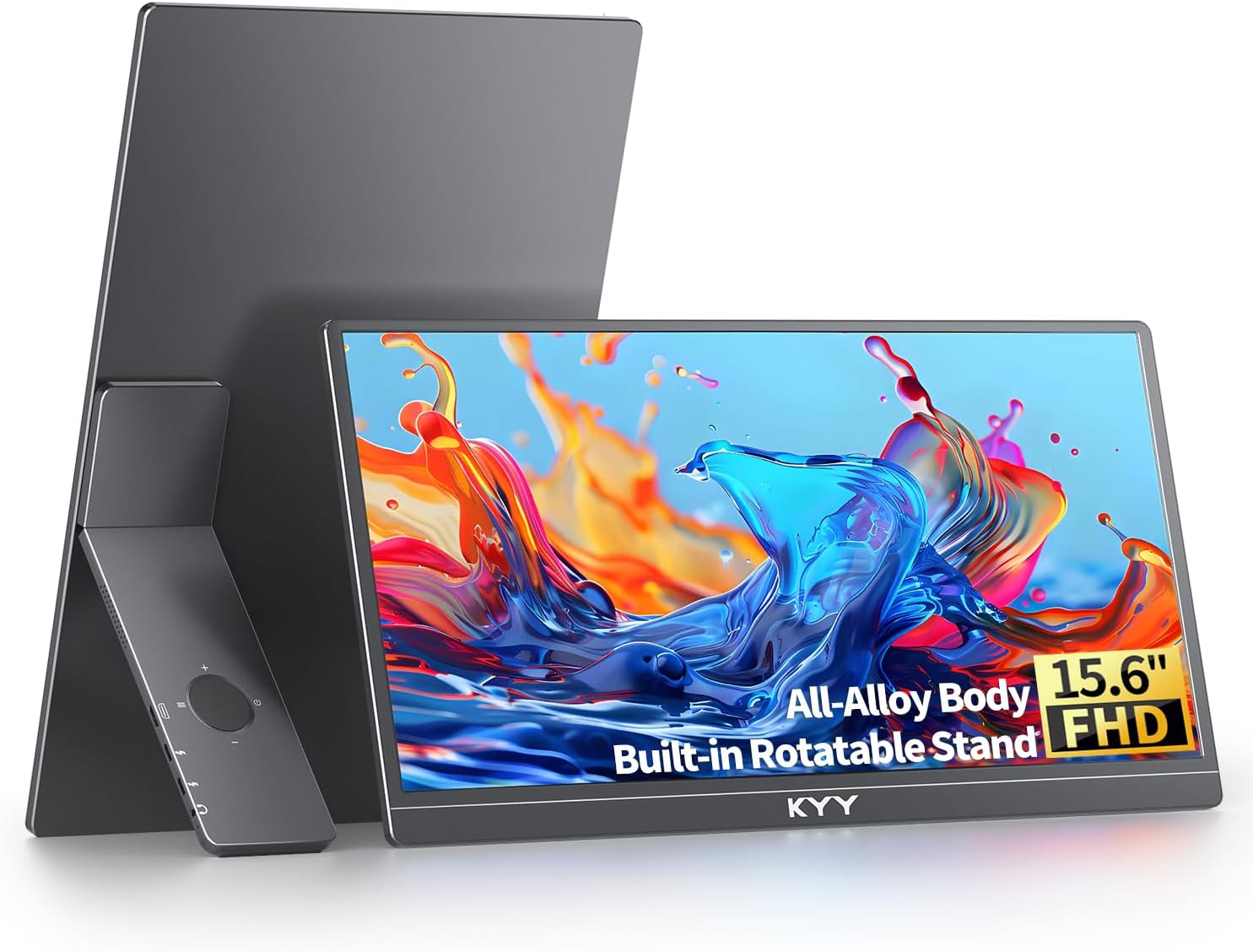
Use this route when your laptop has an HDMI port but no video over USB-C. The KYY 15.6" FHD USB-C HDMI supports both methods, so it is a useful example.
- Plug the HDMI cable into the laptop's HDMI port and the monitor's mini HDMI port. You usually need an HDMI to mini HDMI cable, so check what is in the box.
- Plug a USB-C cable into the monitor's power port and the other end into a phone charger, power bank or a laptop USB port.
- Switch the monitor on if it has a power button.
HDMI carries picture and sound, not power. That is why the extra cable is needed. Check the listing for the recommended charger rating, because a very weak charger may not power the screen at full brightness.
Step 4: Set Extend or Mirror
On Windows 10 or 11
- Press the Windows key and P together.
- Choose Extend to use the monitor as extra desktop space, or Duplicate to show the same screen on both.
- For finer control, open Settings, then System, then Display. Drag the screens to match their physical position, and set the monitor's scale if text looks too small.
On macOS
- Open System Settings, then Displays.
- Select the portable monitor and set it to Use as extended display (or choose mirroring if you prefer).
- Open the arrangement view and drag the screens so the mouse moves in a natural direction.
On a MacBook Air M2 or other base-chip Mac, check Apple's specifications for how many external displays the model supports. Many base models support only one, so this matters for multi-monitor plans.
On Linux
Open your display settings (GNOME, KDE and others each have one) and set the new screen to extend. On a minimal setup, xrandr or your desktop's tool can do it. Behaviour varies by distribution and graphics driver.
Step 5: Adjust resolution, brightness and orientation
Most 15.6 inch monitors here are 1920x1080. Pick that as the resolution so text stays sharp. If the picture looks blurry, the monitor may be running at a lower resolution than its native one. Use the monitor's on-screen menu to adjust brightness and colour, and the operating system's display settings to rotate the screen if you want portrait mode, which many people like for code and documents.
Common problems
- Black screen or "no signal": try a different cable, a different laptop port, and then the other connection type. Our no signal fixes cover each case in order.
- Screen flickers on one cable: add external power to the monitor's second USB-C port.
- Only mirroring works: switch from Duplicate to Extend as above.
- Laptop has only USB-A: a regular USB-A port does not carry video. You would need a docking station or adapter that supports video, and some need drivers. Look at the adapter's own instructions.
- Touch does not work: on touch models, the touch signal often needs a data-capable USB-C connection. If you use HDMI, you may need a separate USB cable. Check the listing.
Quick checklist before you start
- Is the laptop's USB-C port marked for DisplayPort or Thunderbolt?
- Do you have the cables from the box, and a charger for the HDMI route?
- Is the monitor on its stand with the power switch on, if it has one?
- Is the laptop plugged in, so a low battery does not limit the port's power output?
Working through this list solves most first-time setup issues in under five minutes.
Want more than one extra screen?
Once one monitor works, you can add another if your laptop's ports and graphics allow it. Our triple screen laptop setup guide explains the limits. To pick a monitor that fits your ports, browse the USB-C portable monitors category.