
By PortableMonitor Editorial Team ·
Best Portable Monitors for Photo and Video Editing in India (2026)
Only three portable monitors in our data list a colour gamut figure. Here is how they compare for photo and video editing, and where a portable screen falls short.
Disclosure: as an Amazon Associate we earn from qualifying purchases made through links on this page. This guide is based on manufacturer specifications, Amazon.in listings and owner reviews. Prices change, so check the live price before you buy. How we research.
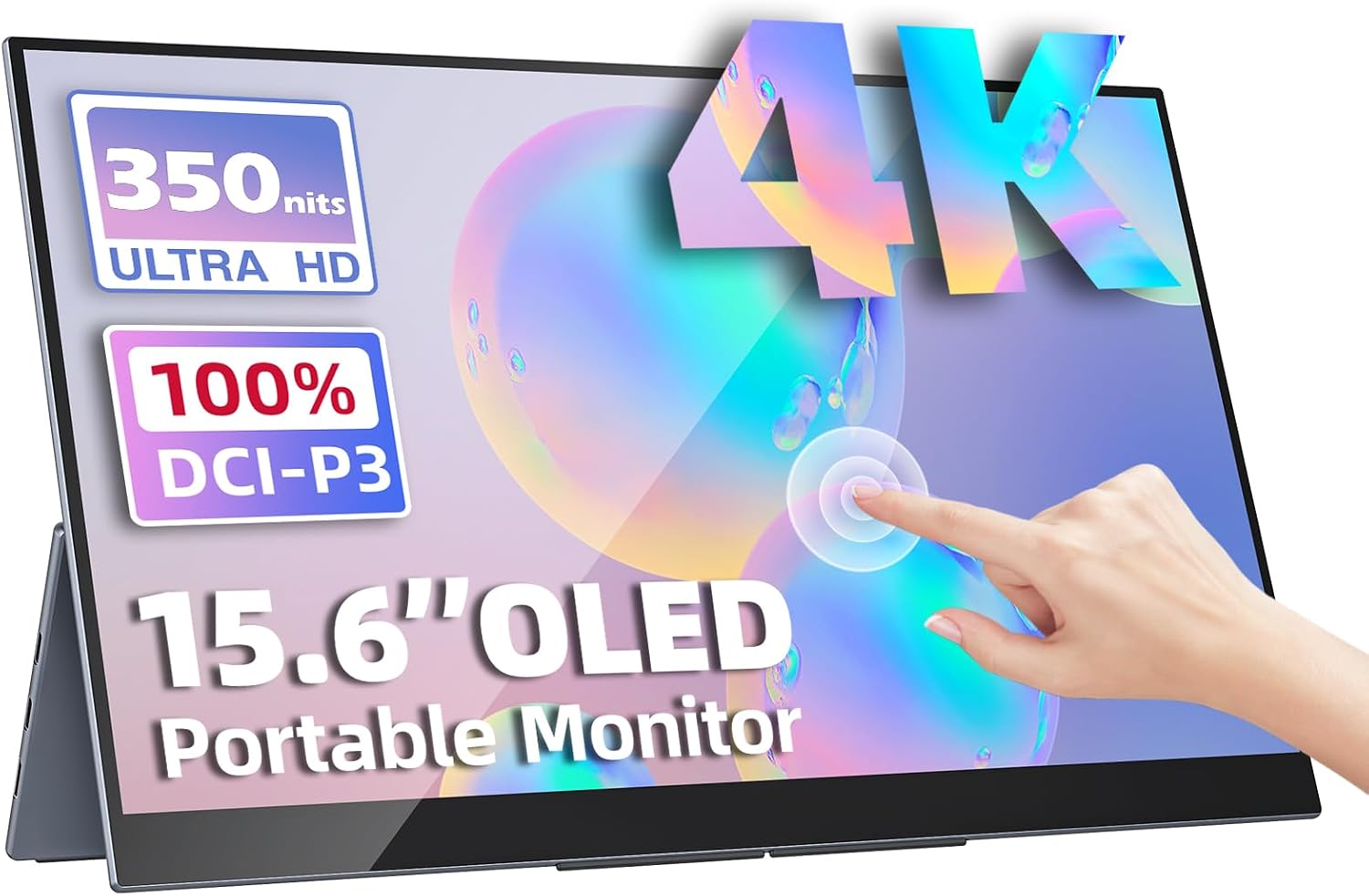
A portable monitor for photo and video editing is useful as an extra screen for panels, timelines and previews, but none of the portable monitors in our data is a calibrated reference display. Only three list a colour gamut figure at all, so the choice is narrower than most guides pretend. This page shows which ones, how they differ, and what to do about the gap between a spec sheet and trustworthy colour.
Quick answer: If you want the best screen for colour work in our data, it is the Upperizon OLED 15.6" 4K Touch (100% DCI-P3, around ₹70,677 at the time of writing). If you want a large, cheaper sRGB panel, take the ARZOPA 17.3" FHD 103% sRGB at around ₹16,990. Amazon.in prices change, so check each product page for the live price.
What a portable monitor can and cannot do for editing
Spec sheets give a colour gamut percentage, a brightness figure and a resolution. They do not give you what a colourist needs: factory calibration data, Delta E accuracy, uniformity across the panel or a stable white point. None of the products in our data lists those figures, and we have not measured them.
That leaves two jobs where a portable monitor is a good fit:
- Second screen for tools. Put Lightroom panels, a Premiere Pro or DaVinci Resolve timeline, a file browser or a reference photo on the portable screen and keep your main laptop display for the image or preview.
- Rough preview on location. A bigger, brighter screen than a laptop panel helps you judge composition and exposure on a shoot or in transit.
It is a poor fit for final grading or print-matching unless you calibrate it with hardware and accept the limits. We cover the calibration part further down.
The three monitors that list colour gamut
| Monitor | Panel | Gamut listed | Resolution | Brightness | Price (approx.) | Rating |
|---|---|---|---|---|---|---|
| Upperizon OLED 15.6" 4K Touch | OLED | 100% DCI-P3 | 3840x2160 | 400 nits | ₹70,677 | 4.8 (180 reviews) |
| ARZOPA 17.3" FHD 103% sRGB | IPS | 103% sRGB | 1920x1080 | 300 nits | ₹16,990 | 4.3 (980 reviews) |
| cocopar 15.6" FHD IPS | IPS | 85% sRGB | 1920x1080 | 300 nits | ₹15,999 | 4.7 (650 reviews) |
Every other monitor in our data leaves the gamut blank. If a listing does not state a gamut, assume you do not know it and do not buy it for colour-sensitive work.
One caution on percentages: manufacturers do not always say whether they mean coverage or volume, and the two figures are not interchangeable. A figure above 100% sRGB, for example, usually refers to colour volume rather than coverage. Treat all of these as marketing numbers until someone measures them.
sRGB vs DCI-P3 in plain terms
sRGB is the standard colour space for the web, social media and most phone photos. If you post to Instagram, publish on a website or send images to people, sRGB is what most viewers will see.
DCI-P3 is a wider space used in digital cinema and many newer phones and laptops. It can show more saturated reds and greens. It helps if you shoot, edit and deliver in P3, for example on some Apple devices or HDR video workflows.
An 85% sRGB panel (the cocopar) will clip some colours. A panel claiming around 100% sRGB is the practical baseline for web and photo work. A 100% DCI-P3 panel is for people whose software and files actually use the wider space. Colour management in your editing software and operating system must also be set up, or the extra gamut is wasted.
Upperizon OLED 15.6" 4K Touch: the premium pick
On paper this is the strongest editing screen in our data. The Upperizon OLED 15.6" 4K Touch lists 3840x2160 resolution (about 282 pixels per inch, so fine detail is sharp), 100% DCI-P3, 400 nits, HDR, multi-touch and a 1ms response time. It ships with a kickstand and a sleeve case.
Its pros in our data: stunning 4K OLED display, 100% DCI-P3 colour, multi-touch and the included case and stand. Its cons: it is very expensive and 60Hz only. It also lists no VESA mount.
Two practical points. First, 4K at 60Hz over USB-C needs a laptop port that supports DisplayPort Alt Mode with enough bandwidth, so check your laptop's specification. Second, OLED has a burn-in risk when static interface elements stay on screen for long periods. Video editing software has many of those (timelines, toolbars). Lower the brightness, use dark mode with moving content, and turn off the display when you step away. For the full trade-offs, read our OLED vs IPS portable monitor guide. If 4K matters most, see the best 4K portable monitors.
ARZOPA 17.3" FHD 103% sRGB: the large, cheaper option
The ARZOPA 17.3" FHD 103% sRGB gives you a bigger canvas for photos at a far lower price. It lists 103% sRGB, HDR, 300 nits and a built-in kickstand, and weighs around 0.73 kg. The pros in the data are HDR support and a good price-to-feature ratio.
The cons: it is 60Hz only, and its 4.3 rating is lower than the other two models here, so read the recent reviews. At 1920x1080 on 17.3 inches (about 127 pixels per inch), fine detail is less sharp than on the 4K OLED. It has no VESA mount. Also, the HDR label does not mean it can grade HDR video. With 300 nits, treat it as an SDR screen.
cocopar 15.6" FHD IPS: lists a gamut, but a narrow one
The cocopar 15.6" FHD IPS lists 85% sRGB, which is lower than the ARZOPA's figure. It comes with a smart cover stand. It is also one of the pricier 15.6" full HD models at around ₹15,999, so you are paying for the gamut figure and a 4.7 rating from 650 reviews. Choose it only if you value that rating and the compact size. For colour work, the ARZOPA is the better sRGB option on paper, and the cocopar's 85% suggests it will show a smaller range of colours.
UPERFECT 22" 2K Touch 180°: large and creative, gamut unknown
The UPERFECT 22" 2K Touch 180° is described in its listing as suited to presentations and creative work. It is a 22-inch 2560x1440 IPS panel with touch, a VESA mount, a 180° kickstand and a 4.9 rating from 95 reviews. We have no colour gamut figure for it, and it lists no HDR, so we cannot say how it handles colour.
It makes sense if you want a large, sharp canvas for retouching or timeline work and your colour accuracy needs are modest. It is heavy (1.5 kg), expensive at around ₹67,821 and 60Hz only. If you are comparing it with the OLED model, see our Upperizon OLED vs UPERFECT 22" comparison, or the full spec table.
Brightness and viewing conditions
The IPS models here list 300 to 350 nits and the OLED lists 400 nits. That is fine in a dim room. In a bright room or outdoors, reflections and low brightness make it hard to judge exposure and shadow detail. For location work, a shade or a dark corner helps more than a spec number.
Calibration caveats
If colour accuracy matters to your work, plan for these points:
- Calibrate with a colorimeter. A hardware device and software can build a colour profile for the monitor. Without one you are trusting the factory setting, which varies between units.
- Check that the monitor lets you adjust or hold settings. Basic on-screen menus on portable monitors are limited, so profiles often live in the operating system instead.
- Mind the connection. Some laptops apply different scaling or colour handling to a USB-C display than to the built-in screen.
- Do not expect panel uniformity of a studio display. Brightness and colour can vary across the screen.
- Keep a reference for final output. If you deliver to clients, make the final judgement on a calibrated display, or on the delivery device.
A practical way to use a portable monitor for editing
Here is a simple workflow that fits the hardware's limits.
- Keep the toolbars on the portable monitor. In photo software, move panels such as histograms, layers and the file browser to the second screen. In video software, put the media bin or the scopes there.
- Keep the image or preview on the best screen you own. If your laptop panel has a better colour gamut than the portable monitor, use the laptop for the final preview and the portable one for tools.
- Set the colour profile on both screens. Your operating system may default to a generic profile for an external monitor. Load a custom profile if you have one.
- Match brightness on both screens. A big gap makes edits look different when you move a window from one display to the other.
- Check your work on the target device. If the photos are for Instagram or WhatsApp, look at them on a phone before you send them.
This approach costs far less than a reference monitor and avoids the biggest risk, which is trusting an uncalibrated screen for final colour.
Which one should you buy?
- Colour work and 4K video, budget is not the limit: Upperizon OLED 15.6" 4K Touch.
- Photo editing on a smaller budget, want a big screen: ARZOPA 17.3" FHD 103% sRGB.
- Compact, a stated gamut and a high rating: cocopar 15.6" FHD IPS.
- Big touch canvas for creative work, gamut unknown: UPERFECT 22" 2K Touch 180°.
If you edit on a MacBook, our portable monitors for MacBook guide covers cables and display limits, and the touchscreen portable monitors guide covers the two touch models here. You can also browse every OLED portable monitor or the 4K portable monitors category.