By PortableMonitor Editorial Team ·
Portable Monitor Not Detected or No Signal? 10 Fixes (2026)
If your portable monitor is not detected or shows no signal, the cause is usually a charge-only cable, a USB-C port without video, or too little power. Here is the order to check.
Disclosure: as an Amazon Associate we earn from qualifying purchases made through links on this page. This guide is based on manufacturer specifications, Amazon.in listings and owner reviews. Prices change, so check the live price before you buy. How we research.
A portable monitor that is not detected, or that shows "No Signal", is almost always a cable, port or power problem, not a dead screen. Work through the checks below in order. Most people find the cause in the first four.
The steps apply to any USB-C or HDMI portable monitor. These fixes come from manufacturer specs, listing details and the problems buyers report most often. Check your own monitor's manual for model-specific notes.
First, work out which symptom you have
The fix depends on what the screen is doing.
| Symptom | Likely cause | Go to |
|---|---|---|
| Completely dark, no backlight, no menu | No power reaching the monitor | Fix 1 |
| "No Signal" message appears | Powered, but no video arriving | Fixes 2 to 5 |
| Computer does not list a second display | Port, cable or driver issue | Fixes 2, 3, 6 |
| Flickers, goes black, restarts | Low or unstable power | Fix 1, Fix 8 |
| Picture appears but wrong size or blurry | Resolution or scaling | Fix 7 |
Fix 1: Check that the monitor is getting enough power
A portable monitor has no battery in any of the models we list, so it runs entirely on power from the cable. If the laptop port supplies too little, you may see a dark screen or constant flicker.
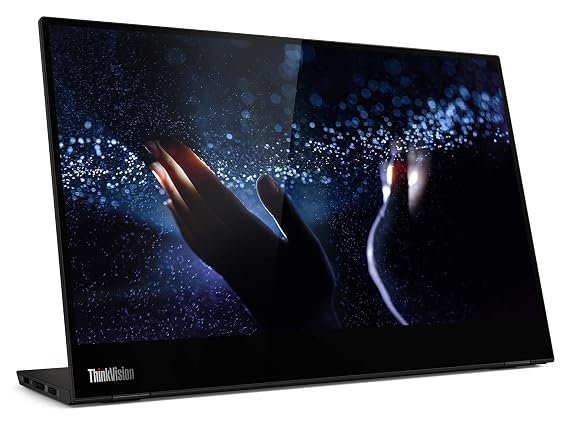
Plug a phone charger into the monitor's second USB-C port if it has one. Many portable monitors have two USB-C ports, one for video and one for power, so check the listing for yours. The Lenovo ThinkVision M14T 14″ FHD Touch has dual USB-C ports with pass-through charging, for example. Our guide on whether portable monitors need external power covers this in more detail.
Fix 2: Swap the USB-C cable
This is the most common cause. Plenty of USB-C cables are charge-only or data-only and cannot carry video. A cable that charges your phone perfectly may still show nothing on a monitor.
Use the cable that came in the box first. If you use your own, pick one rated for video output (look for a DisplayPort, USB4 or Thunderbolt rating, or a spec that mentions 4K video). Very long or very cheap cables can also cause dropouts. Try a short one.
Fix 3: Confirm the laptop USB-C port supports video
A USB-C shaped port is not guaranteed to output video. It needs DisplayPort Alt Mode, which Thunderbolt 3, Thunderbolt 4 and USB4 ports normally include. Some laptops add it to plain USB-C ports, and some do not.
How to check:
- Look for a small DisplayPort or Thunderbolt symbol next to the port.
- Search your laptop model's spec sheet for "DisplayPort Alt Mode" or "video output over USB-C".
- Try each USB-C port. Some laptops enable video on only one of them.
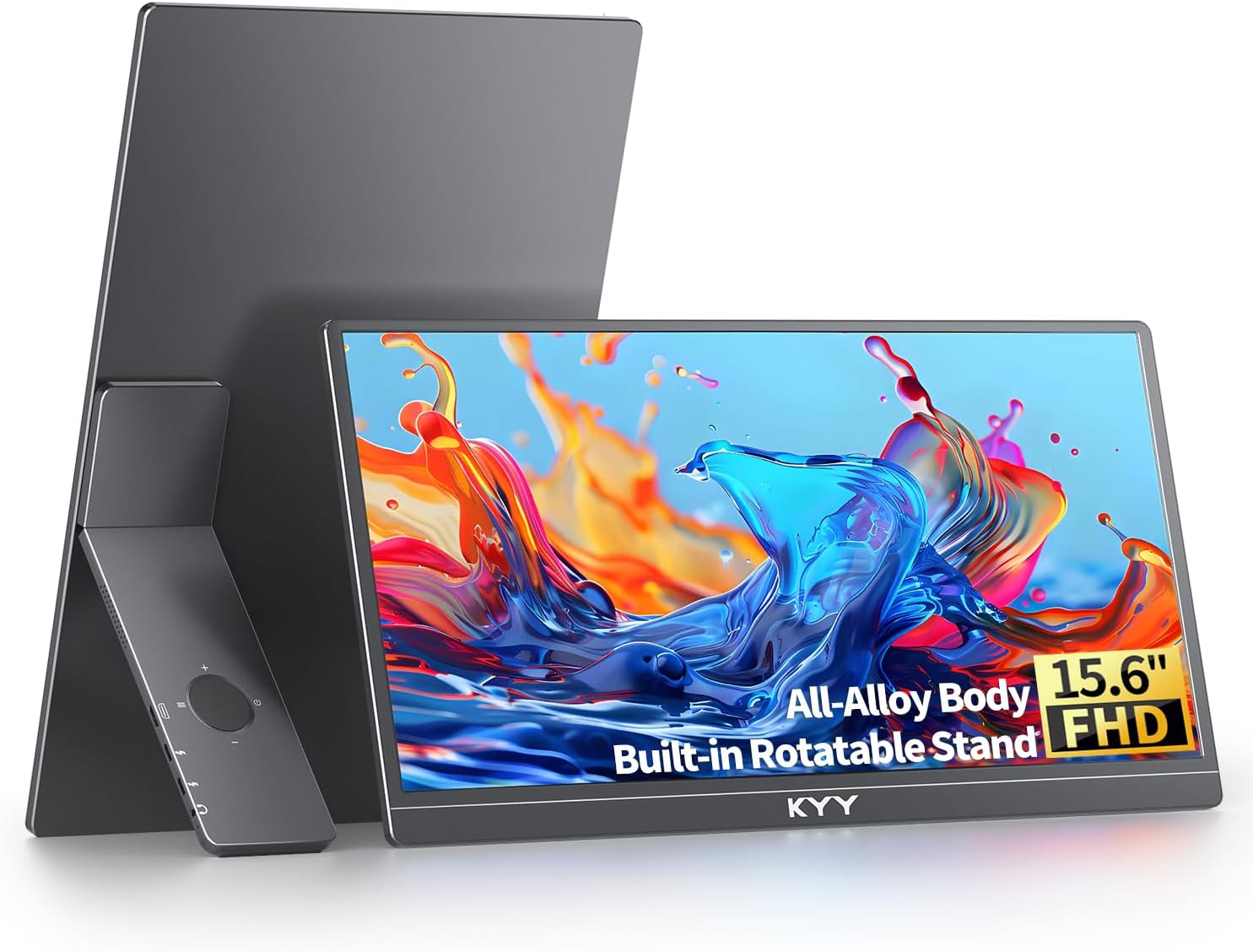
If your laptop has no video-capable USB-C port, use HDMI instead. That is the main reason to prefer a monitor with both connections. The MSI PRO MP161 15.6" FHD lists USB-C and mini HDMI, and the KYY 15.6" FHD USB-C HDMI lists both too. The Lenovo ThinkVision M14T has no HDMI, so it needs a laptop with working USB-C video.
Fix 4: Select the right input on the monitor
Press the monitor's menu or input button and check the source. Some monitors auto-switch between USB-C and HDMI, but not always, especially if two sources are connected. Disconnect one source, then reconnect the one you want and wait ten seconds.
Fix 5: Force the computer to detect the display
Windows
Press Windows key + P and choose Extend or Duplicate. If it is set to "PC screen only", the monitor will show no signal. Then open Settings, System, Display and click Detect under multiple displays.
Mac
Open System Settings, then Displays. Hold the Option key and a Detect Displays button appears. Also check that the monitor is not being used as a mirror unless you want that.
Fix 6: Update graphics and system drivers
An old graphics driver or outdated BIOS can stop USB-C video from working. On Windows, update the GPU driver through the laptop maker's support page or the graphics vendor's tool, then restart. On Mac, install pending macOS updates.
Also try a full power cycle: disconnect the monitor, shut the laptop down, connect the monitor, then boot the laptop with it already attached.
Fix 7: Set a resolution and refresh rate the panel supports
A black screen after plugging in can happen when the computer sends a mode the panel cannot show. Most 15.6-inch portable monitors in our list are 1920x1080 at 60 Hz. Set the display to 1920x1080 and 60 Hz. Exceptions are the 100 Hz UPERFECT 24" 100Hz VESA and a few 4K or 2K models, so check the spec for yours.
Fix 8: Remove hubs, docks and adapters
Connect the monitor straight to the laptop. Docks and cheap hubs often share bandwidth or power, and some do not pass video at all. Once the direct connection works, add the hub back to find the weak link.
For HDMI, check the cable ends. Many portable monitors use mini HDMI, not full-size HDMI, so you may need a mini HDMI to HDMI cable. Confirm the port type on the listing.
Fix 9: Special cases for phones and consoles
Phones need USB-C video output (DisplayPort Alt Mode) to drive a monitor, and many do not have it. Our guide to using a portable monitor with a phone lists what to check.
Game consoles usually use HDMI. If the screen stays dark, the console may need a separate USB power source for the monitor, because console USB ports may not provide enough. Change the console's video output to 1080p if needed.
Fix 10: Test with a second device and know when to return it
Connect the monitor to a different laptop or phone. Then connect your laptop to a different screen. This tells you which side is at fault.
If the monitor shows nothing on any device with a known good cable and power, treat it as faulty. Contact the seller through Amazon.in and check the return window shown on the product page. Return rules vary by seller and category.
Choosing a monitor that is easier to troubleshoot
A monitor with both USB-C and HDMI gives you a fallback when one connection fails. The ARZOPA 15.6" FHD USB-C, around ₹12,990 at the time of writing, is marketed on one-cable USB-C and also lists mini HDMI. The KYY above lists both inputs too and has more owner ratings on its listing (890 against 850 for the ARZOPA). You can compare the two on the ARZOPA vs KYY spec table. Amazon prices change, so check each product page for the live price.
To browse more models with the connection you need, see our USB-C portable monitors category, and read USB-C vs HDMI for portable monitors before you buy.