By PortableMonitor Editorial Team ·
Triple Screen Laptop Setup with Portable Monitors (2026)
A triple monitor laptop setup needs two portable monitors, a laptop that can drive them and enough power. Here is what to check, which pairs fit, and what it costs in ₹.
Disclosure: as an Amazon Associate we earn from qualifying purchases made through links on this page. This guide is based on manufacturer specifications, Amazon.in listings and owner reviews. Prices change, so check the live price before you buy. How we research.
A triple monitor laptop setup with portable monitors means your laptop screen plus two clip-on or kickstand screens, usually one on each side. It works well for coding, trading dashboards and video calls with notes, but only if your laptop can drive two external displays and you plan power before you buy.
This guide covers the three limits that stop people (laptop output, power and ports), then suggests pairs from the portable monitors in our database.
Check your laptop first: can it drive two external displays?
This is the step most buyers skip. A monitor can be perfectly good and still sit blank if the laptop cannot feed it.
Windows laptops
Many Windows laptops with a video-capable USB-C port plus an HDMI port can send two external signals, and some with Thunderbolt can run more. Check your model's spec sheet for "supports X external displays". If it only has one video-capable port, a dock or a USB display adapter may be needed. Adapters that rely on special drivers can behave differently from a native video output, so read the product notes.
MacBooks
Some Apple Silicon MacBooks support only one external display natively on the base chip, while Pro and Max chips support more. Apple lists the limits per model, so check the support page for your exact MacBook before buying two screens. Docking workarounds exist, but they depend on third-party software and are not supported equally on every macOS version. Our MacBook portable monitor guide covers single-screen setups in more detail.
Chromebooks and mini PCs
Chromebooks vary widely, and many are limited to one external display. A mini PC with several video outputs is often easier for a triple-screen desk than a laptop is.
Plan the ports and cables
You need a way to feed two monitors. The usual combinations:
| Laptop ports | How to connect two monitors |
|---|---|
| Two video-capable USB-C ports | One USB-C cable per monitor |
| One USB-C plus one HDMI | One monitor on USB-C, one on HDMI (needs a mini HDMI cable if the monitor has mini HDMI) |
| One USB-C only | A dock or hub that supports two displays |
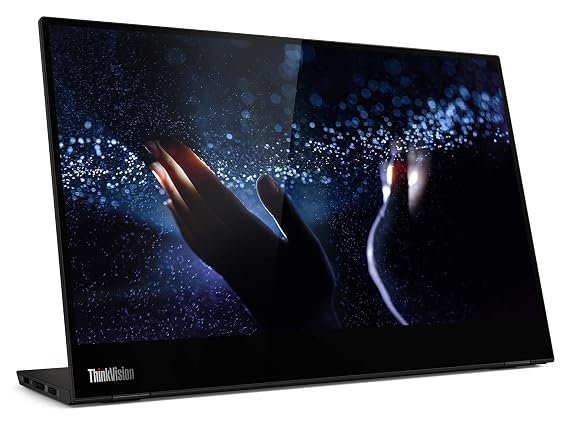
Most of the monitors we list have USB-C and mini HDMI. The Lenovo ThinkVision M14T 14″ FHD Touch is USB-C only (it has dual USB-C ports and no HDMI). If your laptop has an HDMI port, pairing one USB-C monitor with one HDMI monitor is the easiest setup to wire.
Not sure how to connect yours? Our guide on how to connect a portable monitor to a laptop walks through it, and the no signal fixes post helps when a screen stays black.
Power: the real constraint
None of the monitors in our database lists a built-in battery, so each one draws power from a cable. Two monitors pulling power from your laptop's USB-C ports will drain the battery noticeably faster.
Practical options:
- Wall power for the laptop, plus a hub with pass-through. A powered USB-C hub with Power Delivery can charge the laptop and carry video.
- Power each monitor from its own USB charger and feed the signal over HDMI. Most USB-C and mini HDMI models accept a separate power cable, but check the listing for your model.
- Power bank for one of the two. Useful for travel. Check the output rating on the listing.
The Lenovo M14T lists dual USB-C ports with power pass-through, which can help when you want to keep the laptop charging while a monitor is connected. Check the listing for the exact behaviour. Read the full explanation in do portable monitors need external power.
Best pairs for a triple screen setup
Choose two of the same model if you can. Matching size, brightness and colour make the three screens feel like one workspace. All prices are around the figure at the time of writing and change on Amazon.in.
Cheapest pair: two MSI PRO MP161 15.6" FHD
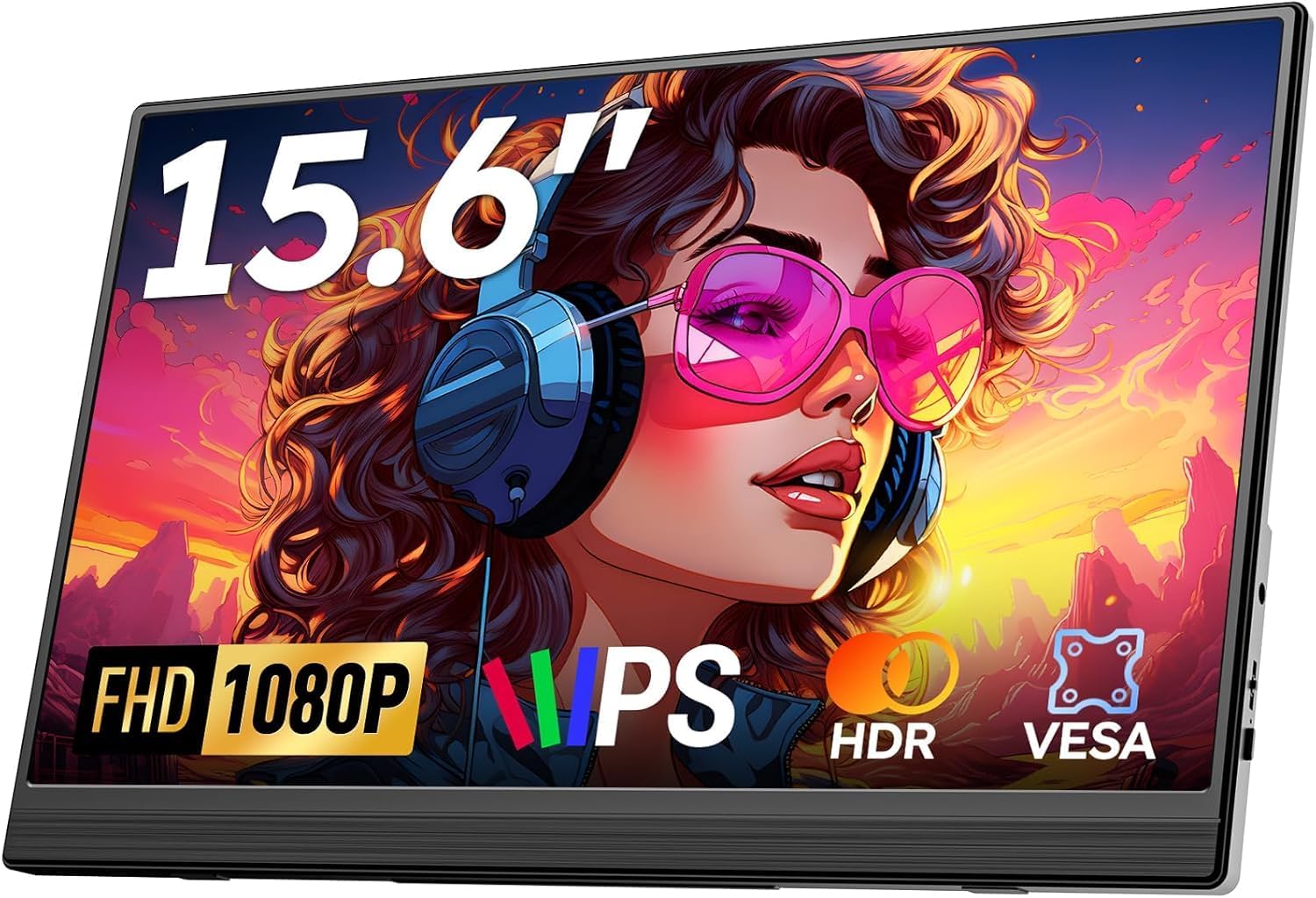
The MSI PRO MP161 15.6" FHD is the lowest-priced model in our data at around ₹9,999, so two cost around ₹19,998. It is 0.6 kg each and has a 4.6 rating from 340 reviews. The listing cons are 250 nits brightness and 60Hz. That brightness is fine in a dim room but weak near windows, and with two screens the dimmer image is more noticeable next to a brighter laptop panel.
Lightest pair: two ARZOPA 14" FHD Ultra Slim
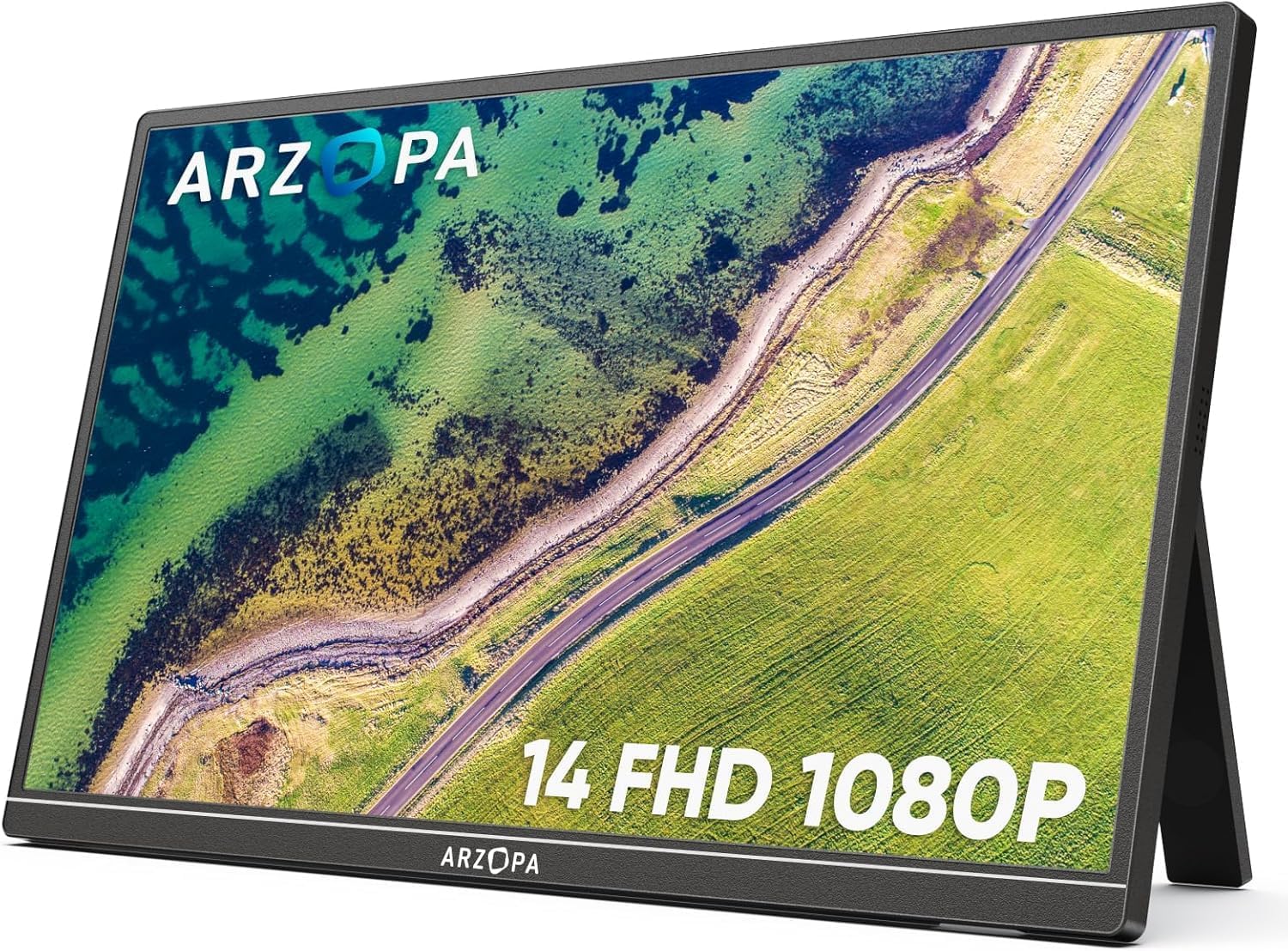
The ARZOPA 14" FHD Ultra Slim weighs 0.5 kg, so two are 1 kg. At around ₹10,999 each, a pair is about ₹21,998. Trade-offs per the listing: 250 nits and 60Hz. This is the easiest pair to carry, and 14 inches pairs well with a 13 to 14 inch laptop.
Best value rating: two Omiodo 15.6" FHD IPS Ultra-Slim
The Omiodo 15.6" FHD IPS Ultra-Slim is 0.7 kg, around ₹11,350 each (about ₹22,700 for two), and has a 4.9 rating from 320 reviews. It has 300 nits, which is a step up from the two models above. No VESA mount and 60Hz are the cons.
Mixed pair for a MacBook or USB-C-only laptop
If your laptop has one USB-C and one HDMI port, pairing the Lenovo M14T (touch, USB-C only, around ₹31,990) with an HDMI-capable monitor such as the Omiodo means each screen gets its own input. This costs more than a matching budget pair, and the Lenovo has no speakers, so use the laptop or the HDMI monitor for audio.
You can compare any two models side by side with the spec comparison for ARZOPA 14" FHD Ultra Slim vs MSI PRO MP161 page.
Arranging three screens
- Match heights. Use the kickstands or smart covers to raise each monitor so the tops are level with the laptop screen. A small riser under the laptop helps.
- Put the main screen in the middle. Keep your primary work on the laptop or the centre panel, and use the side screens for chat, docs or reference.
- Portrait on one side works well for code and long documents. Check that the stand allows portrait; many kickstand-style covers do not.
- Match brightness manually. If you mix 250 nit and 300 nit monitors, set them to similar levels in the monitor menu.
- Measure your cables. Short cables limit where the side monitors can sit.
Software setup after you plug in
Once all three screens light up, a few settings make the setup usable.
- Choose Extend, not Duplicate. Mirroring shows the same image on every screen, which defeats the purpose.
- Drag the display icons into the real layout. In Windows display settings or macOS display arrangement, place the icons in the same left-to-right order as the physical screens, or the mouse will jump to the wrong side.
- Set the scaling per screen. A 14 inch Full HD monitor next to a high-resolution laptop panel can look very different. Adjust scaling so text is roughly the same size across all three.
- Pick the primary display. This decides where the taskbar, menu bar and new windows appear.
- Use window snapping tools. Built-in snap shortcuts, or a free window manager, make it quick to throw an app to a side screen.
If one screen stays blank after this, work through our portable monitor not detected fixes. The usual culprits are a cable that carries power only, a USB-C port without video output, or a laptop that has reached its limit of external displays.
What a triple setup is good for
- Coding: editor in the middle, documentation and a terminal on the sides. Developers will find more ideas in our guide to portable monitors for developers.
- Trading and analytics: charts on the left, order screen in the centre, news on the right.
- Meetings: video call on one side, notes on the other, your main work in the middle.
- Content work: timeline on the laptop, preview on one monitor, assets on the other.
For these uses 1080p is plenty. You do not need 4K on side screens, and spending on resolution rarely helps more than spending on a better stand or a hub.
Setup cost at a glance
| Pair | Approx. cost | Combined weight |
|---|---|---|
| 2 × MSI PRO MP161 15.6" FHD | ₹19,998 | 1.2 kg |
| 2 × ARZOPA 14" FHD Ultra Slim | ₹21,998 | 1.0 kg |
| 2 × Omiodo 15.6" FHD IPS Ultra-Slim | ₹22,700 | 1.4 kg |
Add the price of cables, a hub or dock if needed. Browse more models in the travel portable monitors category, or see our best portable monitors for developers guide if you are building a coding desk.
When a triple setup is not worth it
If you only need extra screen space occasionally, one larger monitor is simpler. A single 17.3 inch or 22 inch screen gives you a lot of area with one cable. Triple screens add weight, cables and battery drain, so buy two only when you really use the third area every day.