By PortableMonitor Editorial Team ·
How to Use a Portable Monitor With a Phone (DeX and iPhone 15)
A portable monitor can work as a bigger screen for your phone. Here is how to set it up with Samsung DeX, iPhone 15 USB-C and other Android phones.
Disclosure: as an Amazon Associate we earn from qualifying purchases made through links on this page. This guide is based on manufacturer specifications, Amazon.in listings and owner reviews. Prices change, so check the live price before you buy. How we research.
You can use a portable monitor with a phone if the phone can send video over its USB-C port, or through an adapter. Samsung Galaxy phones with DeX and the iPhone 15 family are the two common cases, and a few other Android phones also work. This guide shows the cables, the power setup and the limits for each.
Check that your phone can output video
Not every phone with a USB-C port can drive a monitor. The port must support video output (DisplayPort over USB-C), and the phone's software must allow it.
- Samsung Galaxy: Wired DeX works on many recent Galaxy phones and some Galaxy tablets. Check Samsung's support page for your exact model.
- iPhone 15 and later with USB-C: these models can send video to an external display. Earlier iPhones with Lightning need a different adapter, which is outside this guide.
- Other Android phones: support varies a lot. Many budget and mid-range phones cannot output video over USB-C at all. Look at your phone's spec sheet for "DisplayPort", "video out" or "external display".
If you are unsure, search the phone's official specification and look for those words. A phone that cannot output video will show nothing, whatever monitor you buy.
What you need
| Item | Notes |
|---|---|
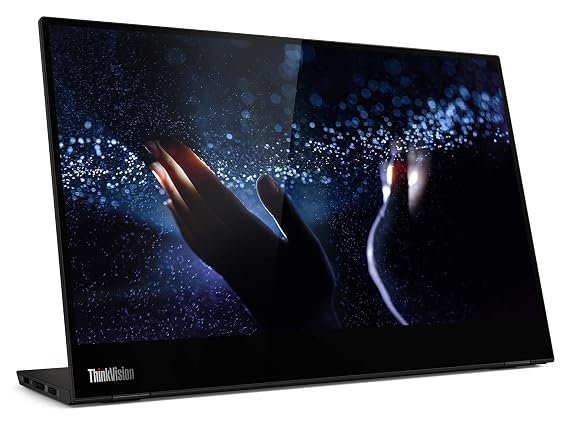
| A monitor with USB-C video input or mini HDMI | Most monitors here have both. The Lenovo ThinkVision M14T 14" FHD Touch is USB-C only. |
| A video-capable USB-C cable | The cable in the box is usually the safest choice. |
| Optionally, a USB-C to HDMI adapter | Needed for the HDMI route. |
| A charger or power bank | Keeps the phone and monitor from draining the phone battery. |
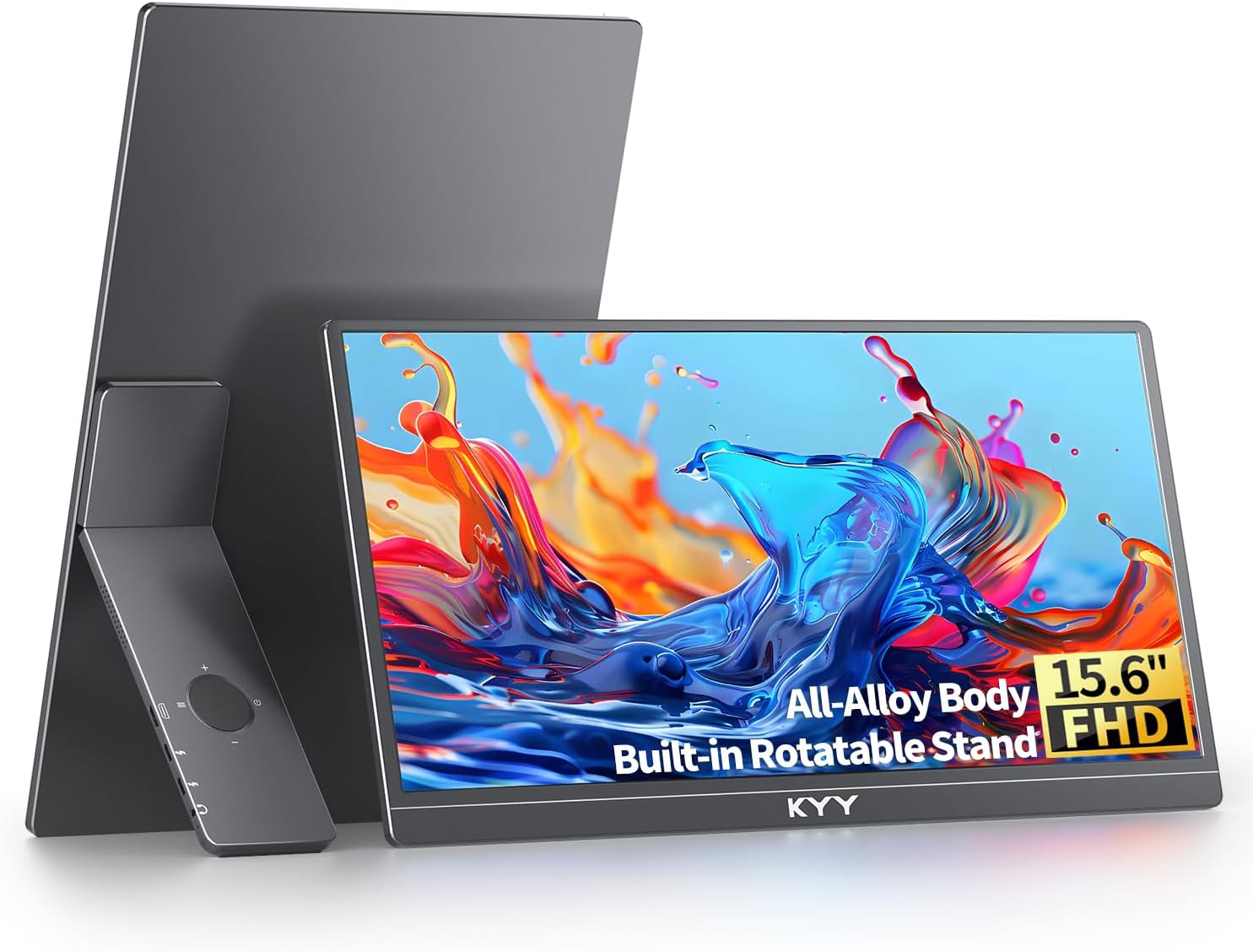
Several listings in our database say the monitor works with phones, including the KYY 15.6" FHD USB-C HDMI, the Omiodo 15.6" FHD IPS Ultra-Slim and the ARZOPA 15.6" FHD USB-C. That statement describes the manufacturer's claim, so your phone model still has to support video output.
Samsung DeX on a portable monitor
DeX turns a compatible Galaxy phone into a desktop-style environment with windows, a taskbar and keyboard and mouse support.
- Connect the monitor to a power source if the listing says the monitor may need more power than the phone can give.
- Plug a USB-C cable from the phone into the monitor's USB-C video port. If the monitor accepts video only over HDMI, use a USB-C to HDMI adapter and a mini HDMI cable.
- On the phone, a prompt should offer DeX or screen mirroring. Pick DeX. You can also start it from the quick settings panel.
- Pair a Bluetooth keyboard and mouse, or plug them into a USB-C hub.
A 15.6 inch 1080p screen suits DeX well: text is readable and several windows fit. Touchscreen portable monitors may also let you tap apps, but touch behaviour under DeX differs by phone and monitor, so check reviews for your model combination before buying for that reason alone.
DeX is the most laptop-like phone setup. If you want to use the phone as a basic work machine for email, documents and browsing, this is the one to try. For a full comparison between display options, see portable monitor vs tablet as a second screen.
iPhone 15 and USB-C
The iPhone 15 family uses a USB-C port that supports DisplayPort video output. In practice:
- Use a video-capable USB-C cable between the iPhone and the monitor, or a USB-C to HDMI adapter and a mini HDMI cable.
- The phone screen is mirrored to the monitor. Some apps, such as video players, may show content full screen on the external display.
- Do not expect a desktop mode like DeX. iOS keeps a phone layout.
This works well for watching videos, showing photos and giving a presentation. It is less useful as a work screen. If you want to type in a document with a big display, an iPhone is a weaker partner than a DeX phone or a laptop.
Check Apple's documentation for your exact iPhone model if you need a specific resolution or refresh rate output.
Keep the battery in mind
Video output plus a powered screen can drain a phone fast. Two ways to avoid that:
- Power the monitor separately. Plug a charger into the monitor's power-in USB-C port. With HDMI, this is always needed. With a USB-C video connection, it is wise.
- Use a monitor with pass-through charging. The Lenovo ThinkVision M14T lists dual USB-C ports with power-delivery pass-through, which can help keep a phone topped up. Check the listing to see whether it charges the phone while sending video.
See our guide on whether portable monitors need external power for more.
Troubleshooting
- Black screen: try the cable in the box, then the other USB-C port on the monitor. Confirm that your phone supports video output.
- Phone mirrors instead of starting DeX: check the DeX prompt or toggle it in settings.
- Flickering: the monitor may be taking too much power from the phone. Add a charger to the monitor.
- Picture is stretched or cropped: change the display scaling in the phone's settings, or the monitor's aspect setting if it has one.
- Touch does not respond: the monitor may need a data connection for touch, and not all phones support it.
If nothing works on any cable, our portable monitor not detected fixes cover the usual causes. For laptops, see how to connect a portable monitor to a laptop.
When this setup is worth it
A phone with a portable monitor suits light work: reading documents, replying to email, watching video, or giving a quick presentation without a laptop. It will not replace a laptop for heavy multitasking. If you already carry a laptop, a second screen for it is usually more useful than a phone setup.
Which monitor suits a phone best?
A lightweight USB-C model is the easiest to carry with a phone. Browse the USB-C portable monitors category, and compare USB-C vs HDMI if you are unsure which ports to look for. A monitor with both USB-C and mini HDMI gives you the most routes if your phone or adapter is fussy.